Your library, portable.
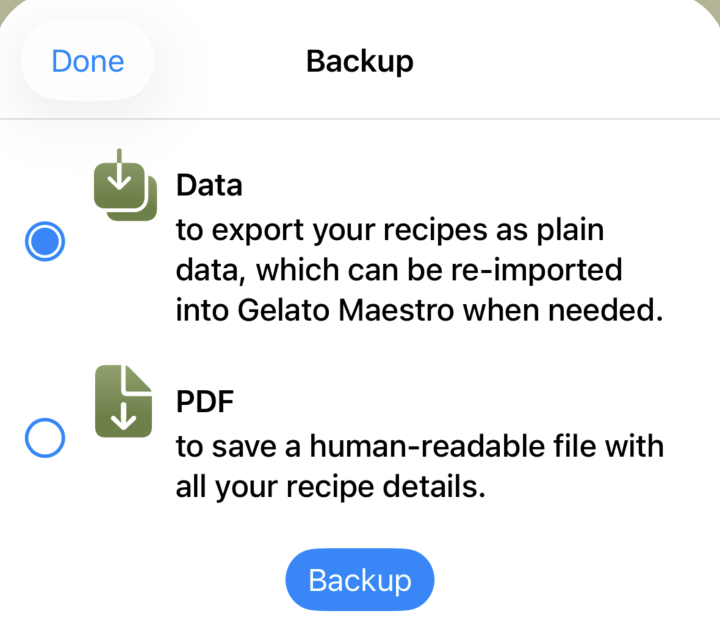
Gelato Maestro can produce two kinds of export: a data backup that can be re-imported, and a PDF archive for printing or sharing. Individual recipes and ingredients can also be shared as standalone .gmaestro files.
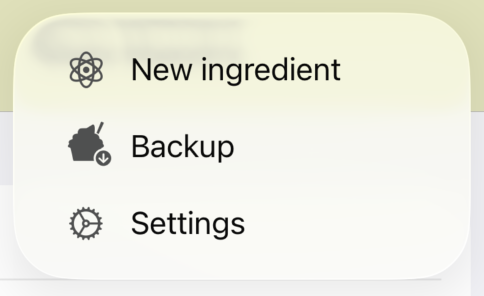
Open it from: Sidebar toolbar › Backup.
A JSON file containing every recipe, every custom ingredient, every batch freezer profile and every production batch in your library. It's the only format that can be re-imported into Gelato Maestro to restore your work.
.gmaestro on a USB drive or your Time Machine gives you a real undo for a bad afternoon.
A readable PDF archive of every recipe in your library: names, ingredients, ratios, KPIs and notes. Perfect for:
PDF backups cannot be re-imported — they're read-only.
Use the Share action on any recipe or ingredient (toolbar or context menu). Gelato Maestro produces a small .gmaestro file you can send via Mail, Messages, AirDrop, or any file-sharing service. The recipient double-clicks the file to add it to their own library.
To import a backup or a shared file:
.gmaestro file in Finder, or drag it onto the Gelato Maestro icon..gmaestro adds its content to your library; it does not wipe your existing recipes and ingredients. To start from a clean slate, delete first, then import.
Backups are auto-named with the date — for example Gelato_Maestro_Recipes_2026-05-16.gmaestro. Keep the timestamp in the filename when you save manual backups so you can roll back to a known good state.