Define how an ingredient behaves in every recipe that uses it.
The composition editor is the foundation of accurate balancing. Every value you enter here flows into PAC, POD, total solids and every other KPI in Gelato Maestro, so spend a few minutes getting it right and the rest of the app rewards you. The same editor is used whether you're creating a brand-new ingredient or updating one you already have.
Open it from: Sidebar › New Ingredient to create a new one, or any Ingredient Detail › Edit (pencil) to edit an existing one. Default ingredients open read-only — duplicate them to edit.
How the editor is organised
The composition editor is laid out as five numbered sections. Filling them in this order — top to bottom — is by far the easiest way to get an accurate ingredient:
#
Section
What you enter
1
Water
Water content per 100 g. Drives total solids automatically.
2
Total Solids & Alcohol
Protein, cocoa solids, salt, fibre, stabilizers, alcohol — and the read-out of Other solids, total sugars, total fat.
3
Sugars & Alcohol
Sucrose, dextrose (glucose), fructose, lactose, maltose, polyols (with molar mass), alcohol. PAC and POD are calculated here.
4
Fats
Cocoa fat, milk fat, other fats. Sums into total fat.
5
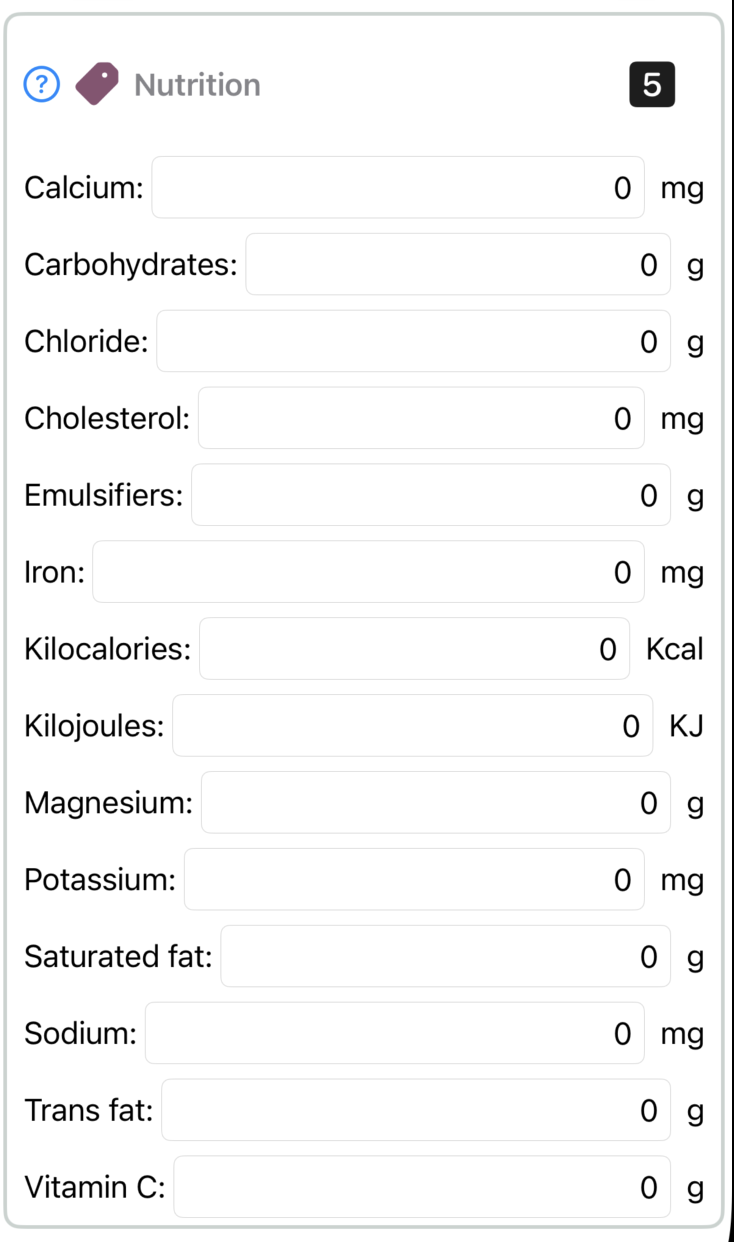
Nutrition
Label data: energy (kcal/kJ), carbs, fibre, sodium, etc. Informational only — doesn't feed balancing.
One rule everywhere: 100 g
Every field in the editor is "per 100 g of the ingredient". water + total solids = 100 always. As you add real solids the auto-balancing Other solids field shrinks to keep that identity true.
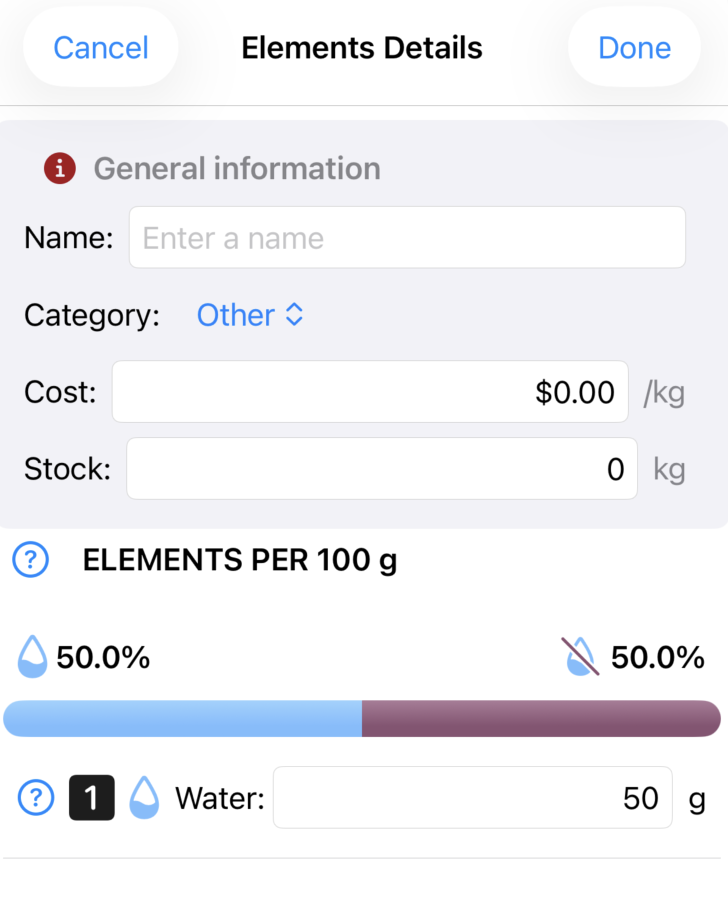
General information
Name — what shows in your library and on production sheets.
Category — Dairy, Sugar, Emulsifier, Stabilizer, Fruit, Nut, Chocolate, Egg, Oil, Alcohol, Vegetable, Base, or Other. Controls where the ingredient appears in the sidebar.
Cost per 100 g — drives recipe cost and Auto-balance (Cost). Hidden in Enthusiast mode
Stock — current quantity on hand. Auto-decrements on each production. Entering or updating this value also sets the baseline for stock notifications.
Locked ingredients
Default ingredients are locked because they're part of Gelato Maestro's curated library. To customize one, use Duplicate and edit the copy.
1 Water
The General information card and, below it, the Elements per 100 g card with the water/solids bar and the badge-1 Water field.
Enter the ingredient's water content per 100 g. Gelato Maestro instantly computes total solids = 100 − water and updates the visual bar above the section. This is the single most important number in the editor — every other field competes for what's left in the solids budget.
Fresh whole milk: water ≈ 87, solids budget = 13.
Cream 35%: water ≈ 58, solids budget = 42.
SMP, dextrose, sucrose, any dry powder: water = 0, solids budget = 100.
Fruit purée: typically 80–92% water, depending on fruit.
If you only have a few certain numbers, set water first
You can't accurately compute anything else until water is correct. Get water from the label, the producer spec sheet, or a reliable reference, then fill in the rest.
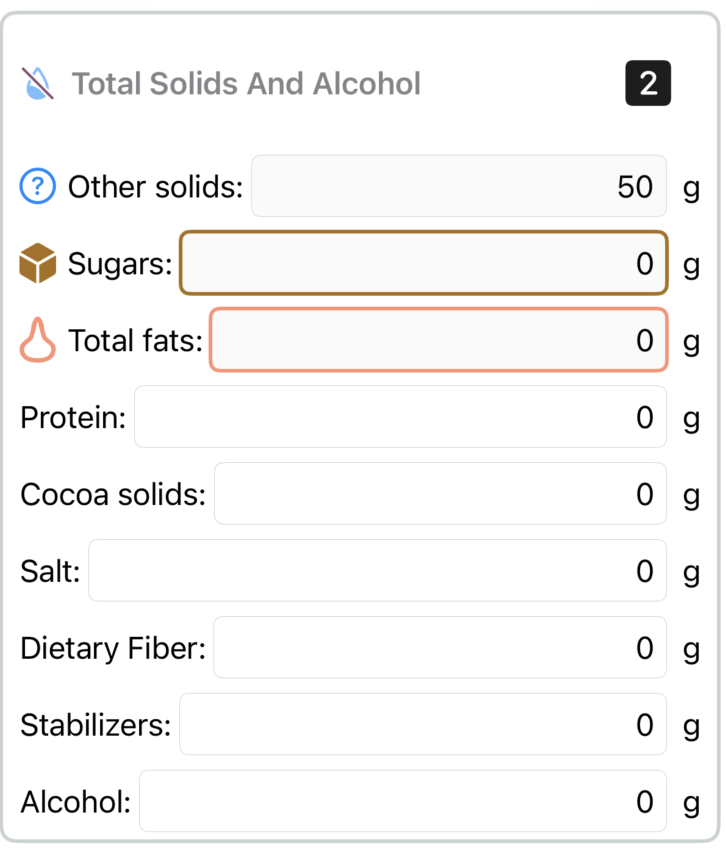
2 Total Solids & Alcohol
Section 2: editable base solids on the bottom; the top three (Other solids, Sugars, Total fats) are derived.
This section is where the non-sugar, non-fat solids live. You enter:
Protein — milk protein, vegetable protein, egg protein.
Cocoa solids — the non-fat cocoa portion in cocoa powder, chocolate, cocoa mass.
Salt — sodium chloride content.
Fibre — dietary fibre.
Stabilizers — gums, emulsifiers used at trace levels (locust bean, guar, mono- and diglycerides, etc.).
Alcohol — ethanol content. Strong contributor to PAC, also shown in section 3.
And it displays — read-only — three derived values:
Other solids — the balancing residual. See Other solids below.
Total sugars — sum of everything you enter in section 3.
Total fat — sum of everything you enter in section 4.
About the alcohol field
Alcohol appears in this section and in section 3 (Sugars & Alcohol) — it's the same value, edited in either place. It's split into both because it contributes to total solids (section 2) and to PAC (section 3).
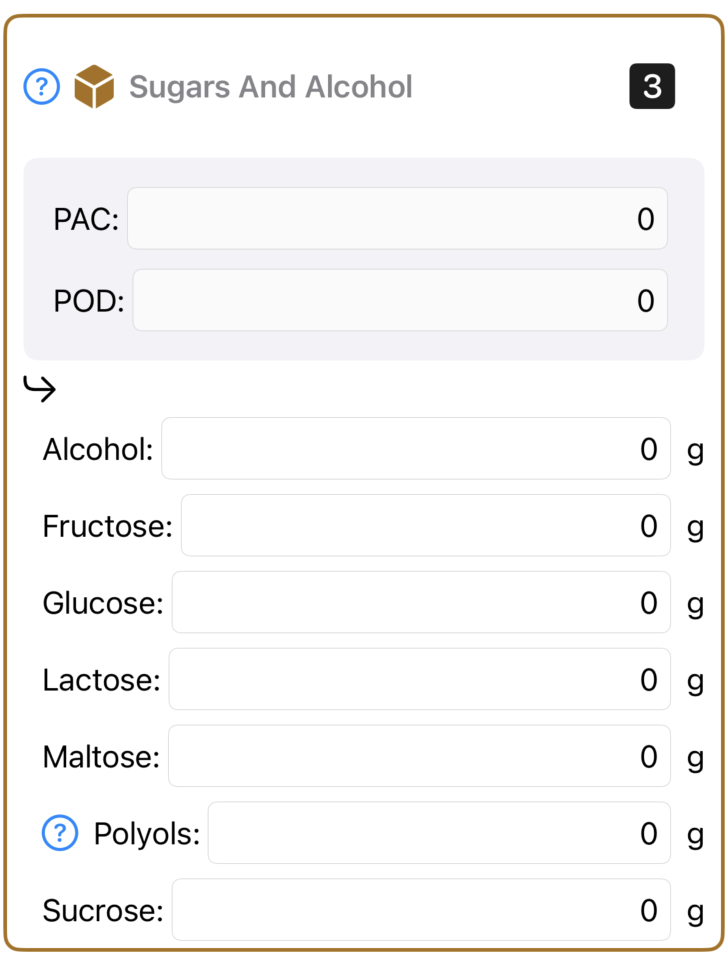
3 Sugars & Alcohol
Sugars and alcohol drive PAC and POD automatically.
This is where PAC (anti-freezing power) and POD (relative sweetness) come from. Enter what you know, in grams per 100 g:
Sucrose — table sugar. The reference: POD = 100, average PAC.
Dextrose (glucose) — higher PAC than sucrose, lower POD (less sweet).
Fructose — much higher POD (sweeter), high PAC.
Lactose — low POD, low PAC. Drives MSNF together with protein.
Maltose — common in glucose syrups.
Polyols — sugar alcohols (sorbitol, xylitol, maltitol). See below.
Alcohol — strong PAC contributor. Enter the alcohol content per 100 g for liqueurs, wines, spirits.
Gelato Maestro derives these as you type:
Total sugars — sum of the sugar inputs.
PAC — weighted by each sugar's anti-freezing coefficient, plus alcohol contribution.
POD — weighted by each sugar's sweetness coefficient.
MSNF — appears in the editor when lactose > 0; it's calculated as protein + lactose.
Don't know the sugar breakdown? Use sucrose.
If a label or a supplier sheet says "sugar" without specifying, default to sucrose. It's the reference sweetener — better to capture the total accurately as one sugar than to invent a fake split.
Polyols and molar mass
Polyols (sugar alcohols) need a little extra information because their PAC is mass-dependent. When you enter a non-zero polyol value, the section shows a Molar mass field with units of g/mol. The PAC for that polyol is then calculated from this molar mass; POD must be entered manually because perceived sweetness varies by polyol type.
Typical molar masses to enter:
Sorbitol — 182 g/mol
Maltitol — 344 g/mol
Xylitol — 152 g/mol
Erythritol — 122 g/mol
You rarely have to add polyols by hand
Most recipes use polyols as a whole packaged ingredient. The default library already has sorbitol, maltitol and similar entries with the correct molar mass — pick those instead of recreating one from scratch.
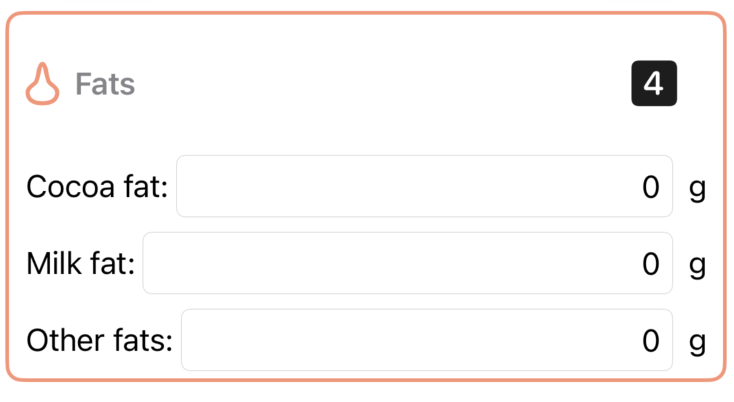
4 Fats
Section 4: three editable fat classes that sum into total fat.
Total fat is the read-only sum of the three. The Fat gauge in Recipe Details reads from this total.
Fat values are clamped to the remaining solids budget — if you push beyond what water has left available, the field stops at the maximum and you'll see the Total Solids Exceeded toast.
5 Nutrition
Section 5: every Nutritional Label field. Informational only — none of these feed balancing.
The Nutrition section is for the printed Nutritional Label. None of these values feed balancing — they exist to populate retail labels.
Energy (kcal and kJ)
Total carbohydrates and fibre
Sodium / salt
Cholesterol
kcal and kJ stay in sync
Enter one and the other is computed automatically using the standard conversion (kJ = kcal × 4.184). Pick the unit your local regulations use and let Gelato Maestro fill the paired field.
Other solids — the balancing residual
The Other solids field lives at the top of section 2 (Total Solids & Alcohol), right above Sugars and Total fats — see the screenshot earlier in this page.
"Other solids" is not a nutrient. It's the residual that Gelato Maestro keeps reserved so the math always balances to 100 g. The relation is:
other solids = total solids − (sugars + fats + protein + cocoa solids + salt + fibre + stabilizers + alcohol)
As you enter real analytes (sugars in section 3, fats in section 4, base solids in section 2), Other solids automatically decreases by the corresponding amount. You should never edit it directly. A small non-zero residual at the end (say 1–3 g) is perfectly acceptable — it just means there's some minor matter in the ingredient (minerals, trace components) that you haven't specifically classified.
If Other solids is huge and unrealistic
It usually means real analytes are missing. The most common causes:
You set water but haven't filled any sugars or fats yet.
The total fat from the label is non-zero but the fat subclasses are still empty.
An imported nutrition record had no detailed breakdown.
Fill in the known sugar and fat splits and Other solids will shrink naturally.
"Total Solids Exceeded" error
You'll see a Total Solids Exceeded toast pop up if the value you just entered would push the sum of solids above what water leaves available (100 − water). Gelato Maestro clamps the field at the maximum the budget allows, so your data stays valid — but the toast tells you that something else has to give.
Why it happens
You raised a sugar, fat, or base solid past the room left in 100 − water.
You started from an ingredient with too-high water for what you're now entering.
You're double-counting mass (e.g. entering both "total sugars" and the individual sugar splits as if they were independent).
How to fix it
Re-check the Water value in section 1. If it's too high, lower it — that's the biggest single lever.
Look at the total of the three big buckets: total sugars (section 3), total fat (section 4), and the base solids in section 2 (protein, cocoa solids, salt, fibre, stabilizers, alcohol). Their sum can't exceed total solids.
Reduce the least certain value first — typically other fats, stabilizers, or an alcohol assumption — rather than the one you trust from the label.
Don't try to "rescue" the math by editing Other solids. It will rebalance itself once the real analytes fit the budget.
Scanning a barcode
Scan a packaged product's barcode to pre-fill nutrition data.
When you create a new ingredient, you can scan the barcode on a packaged product. Gelato Maestro queries Open Food Facts (OFF), a community-maintained open database, and pre-fills as many fields as the product record contains. This is the fastest way to onboard ingredients you'll buy off the shelf.
What the scanner fills
When a product is found, Gelato Maestro treats these OFF values as high-confidence anchors and applies them directly:
Total fat
Sugars total
Protein
Salt / sodium
Energy (kcal and kJ)
Fibre, carbohydrates, and other label values when present
What it cannot fill — and what you'll often have to add by hand — is the detailed composition: which sugars (sucrose vs. dextrose vs. fructose), which fats (cocoa vs. milk vs. other), and balancing-only fields like stabilizers. OFF rarely includes these.
Always cross-check after a scan
Open Food Facts is community-edited, and some products have stale or incomplete entries. After a scan:
Verify Water looks right (sometimes OFF only has solids).
Verify the fat split: if total fat is 8 g but cocoa/milk/other are all 0, distribute manually.
Verify sugar breakdown: if "sugars" is 18 g but no sucrose/dextrose entries, default to sucrose for the bulk.
Check that Other solids isn't unrealistically high — that's the tell-tale of a missing fat or sugar split.
If no scan match exists
OFF doesn't have every product. If nothing comes back, fill the editor manually from the package label and supplier spec sheet, in the section order described above.
Balancing fields
These fields are the defaults Gelato Maestro applies whenever the ingredient is added to a recipe. Auto-balance is purely mathematical — it doesn't know about culinary ceilings or single-correct dosages. These fields are how you tell it.
Use for balancing
A simple on/off toggle. When off, the ingredient is removed from the balancing math entirely — it doesn't contribute to total solids, sugars, fats, PAC, POD, MSNF or scoopability. The ingredient is still in the recipe (still costed, weighed and printed on the production sheet) but the engine acts as if it weren't there.
Set this off for inclusions — ingredients added after churning that don't dissolve into the mix:
Leave it on (the default) for ingredients that go into the mix and freeze with it — milk, cream, sugar, SMP, fruit purée, stabilisers, alcohol, flavoring pastes, and so on.
Dosage limit and Dosage mode
The Dosage limit is a value in grams per 1000 g of mix. It only takes effect once you pick a Dosage mode below it. The two modes mean different things:
Dosage mode
What it does
Use it for
Max Limit
The Dosage limit is the maximum the engine may use. Auto-balance is free to pick any load between 0 and the limit, whatever best fits the KPI ranges.
Culinary ceilings — lemon juice ≤ 250 g, alcohol ≤ 40 g, intense spices ≤ a few grams. The engine optimises underneath.
Fixed
The Dosage limit is a hard value the engine must honour exactly. Auto-balance pins the ingredient at the limit and balances everything else around it. Rescale also keeps it pinned.
Ingredients with a single correct dosage — stabilisers (4 g), mono- and diglycerides (1.5 g), a flavour paste used at a specific 30 g.
PAC offset
An integer adjustment added to the ingredient's calculated PAC contribution. Use it when an ingredient affects freezing in ways the sugar/alcohol math doesn't capture — for instance, a water-binding stabiliser. The picker ranges from −200 to +200 per 100 g.
Defaults vs per-recipe overrides
The values you set here are the defaults. Every recipe can override them on a per-ingredient basis from the recipe's per-ingredient row menu. The recipe-level override only affects that one recipe; your ingredient defaults stay intact.
Set the ingredient defaults once
Two minutes spent on each custom ingredient pays for itself for the rest of the year:
Pick Use for balancing = off for every inclusion (chocolate flakes, cookies, candied fruit) so Auto-balance never tries to compensate for them.
Set Dosage limit + Max Limit on every ingredient with a culinary ceiling — lemon juice 250 g, vodka 40 g, cocoa nibs 80 g, espresso 30 g.
Set Dosage limit + Fixed on every ingredient with a single correct dosage — stabilisers at 4 g, mono- and diglycerides at 1.5 g.
Nutritional label settings
At the bottom of the editor, a separate Nutritional Label card carries two retail-compliance fields:
Mark as allergen — toggles the ingredient to print in bold on labels, as required by EU and US regulations for the 14 listed allergens.
Alternative name — the consumer-facing name on the printed label. Use it when your internal name differs from what regulators expect ("SMP" → "Skimmed Milk Powder").
Saving and deleting
Save commits the edit and refreshes every open recipe that uses the ingredient. Delete is only available for user-created ingredients, and only after they're removed from every recipe (Gelato Maestro will warn you).
Edits propagate to existing recipes
Changing a custom ingredient's composition immediately affects every recipe that includes it — KPIs recalculate using the new values. If you want to experiment without disturbing other recipes, duplicate the ingredient first.
Troubleshooting
"Total Solids Exceeded" keeps popping up
Walk through these in order:
Confirm water is correct in section 1 — usually the culprit.
Sum what you've entered in sugars (section 3) and fats (section 4); the sum cannot exceed total solids.
Check protein, cocoa solids, salt, fibre, stabilizers and alcohol in section 2.
Reduce the least certain contributor first — other fats, stabilizers, or an alcohol guess.
Other solids keeps changing on its own
That's the expected, designed behavior. Other solids is the residual balancer — it shrinks every time you enter a real analyte, and it's read-only. Focus on the fields you actually know; let the residual settle wherever it lands.
Other solids is huge and unrealistic
Real analytes are missing. The most common gaps:
The fat total is non-zero but the cocoa/milk/other fat split is all 0 — open section 4 and distribute.
"Sugars" came from a scan but no sucrose/dextrose/etc. is set — open section 3 and assign at least to sucrose.
Alcohol is present on the label but not in the editor.
PAC looks wrong
Audit the sugar split — is one sugar carrying a load it shouldn't?
If polyols > 0, verify molar mass is set correctly (e.g. 182 for sorbitol).
Check the alcohol field. A missing alcohol value silently kills PAC for a liqueur.
If you've set a PAC offset, remember it stacks on top of the calculated value.
Total fat is 0 but the label shows fat
Open section 4 and enter the fat split (cocoa fat / milk fat / other fats). Total fat is the sum — if all three are 0, the total is 0 even if a scanner pre-filled the label number.
Texture is sandy in the finished product
This is a recipe-level symptom, but it often comes from an ingredient definition. Check:
Lactose values across all dairy ingredients in the recipe — too much lactose crystallizes during storage.
Your MSNF total in the recipe gauges.
Stabilizer dosage and storage temperature stability.
kcal and kJ keep "fighting" each other
They are linked — entering one updates the other. Pick one as authoritative and verify the converted counterpart afterward; don't try to set both independently.
Reverting to a clean state
If an edit goes sideways, the safest path back is to close the editor without saving. For default ingredients you can never permanently break anything — they're locked. For custom ingredients, every edit is undoable through the macOS Undo command before saving.