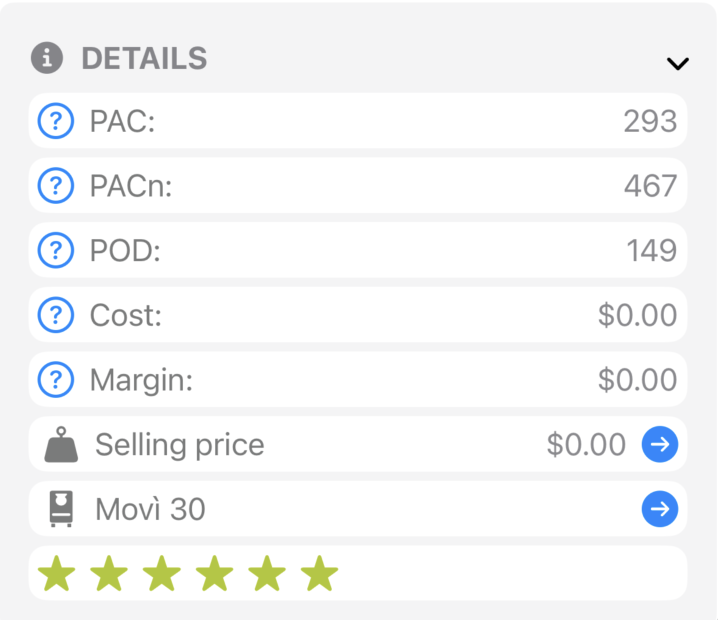
The main formulation workspace.
Recipe Details is where you actually design a gelato. It's split into two stacked panes — ingredient list on top, gauges and freezing curve below — with a collapsible header carrying the recipe metadata.
The header at the top of the recipe summarises everything you'd want to glance at while you formulate. Click any value to edit it inline.
| Field | What it controls |
|---|---|
| Name | Tap the pencil to rename. |
| Gelato Kind | Cream or Sorbet — switches the KPI presets and the default gauge ranges. See KPI Glossary. |
| PAC / PACn | Anti-freezing power and its normalized form (over total water). Higher PAC = softer texture at serving temperature. |
| POD | Relative sweetness — a weighted sum of every sugar's sweetness factor. |
| Cost | Sum of ingredient costs at the current loads, per 1000 g of mix. Hidden in Enthusiast mode. |
| Margin | Selling price minus cost, scaled to your production quantity. Hidden in Enthusiast mode. |
| Selling Price | Set the price per scoop, per weight or per unit. Drives Margin and revenue in Statistics. Hidden in Enthusiast mode. |
Each row in the top pane is one ingredient in the recipe, with its load expressed in grams per 1000 g of mix and a slider for quick adjustment.

Drag the slider to change the load, or click the number to type a value precisely. The other ingredients are not moved automatically — you choose how to rebalance. The colored bars next to each row show the ingredient's contribution to fat, sugars, solids and water.
Use Edit Ingredients in the toolbar to open a picker. You can browse by category, search, or scan a barcode (when scanning your own ingredient first — see Editing an Ingredient). To remove an ingredient quickly, use the row's context menu (see below).
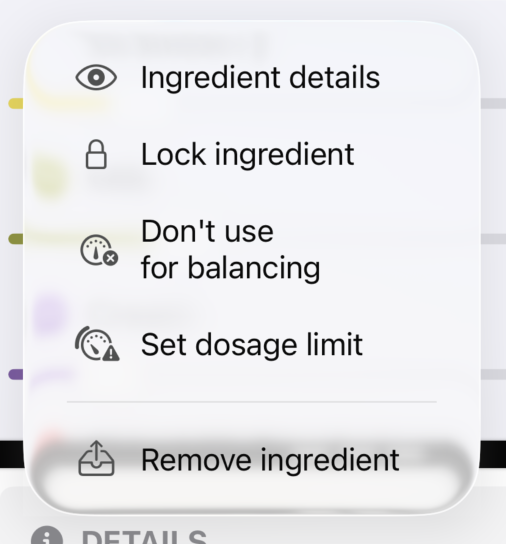
Tap (or click) the leading three-dot button on any ingredient row to open its context menu. From there you can drill into the ingredient and override its balancing flags for this recipe only.
| Action | What it does |
|---|---|
| Ingredient details | Opens the ingredient's detail view — composition, charts, cost, notes. |
| Lock ingredient | Pins the ingredient's load at its current value. Auto-balance cannot change it and Rescale preserves it. |
| Don't use for balancing | Removes the ingredient from the balancing math — it no longer contributes to total solids, sugars, fats, PAC, POD, MSNF or scoopability. The right setting for inclusions added after churning (chocolate flakes in stracciatella, cookie pieces, candied fruit) that don't dissolve into the mix. The ingredient is still costed and printed on the production sheet. |
| Set dosage limit | Per-recipe override for the Dosage limit (g per 1000 g) and the Dosage mode. Max Limit = the engine may use any load between 0 and the limit — use it for culinary ceilings (lemon juice ≤ 250 g). Fixed = the engine pins the load at exactly the limit — use it for ingredients with a single correct dosage (stabiliser at 4 g). Defaults come from the ingredient itself. |
| Remove ingredient | Takes the ingredient out of the recipe. |
Drag a row to change the order. Recipes are usually ordered from heaviest to lightest ingredient — it's also the order used on printed production sheets.

The bottom pane is your at-a-glance read on whether the recipe is in spec.
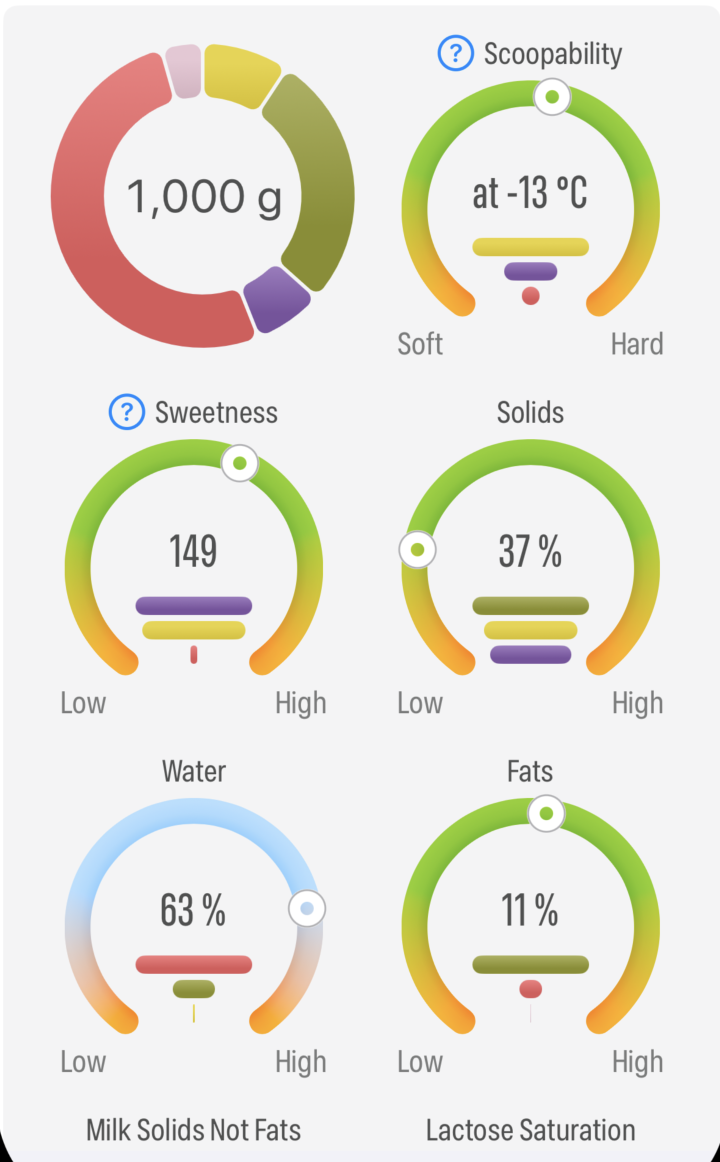
Each gauge has a target range defined in Settings › Gauges per gelato kind. The needle turns red when a value sits outside the safe range. The freezing curve shows hardness over temperature so you can see how the gelato will behave from blast-freezer storage down to your serving temperature.
Drag the divider between the two panes to give yourself more room for either the list or the gauges, depending on what you're working on.
Click the price in the header to open the Selling Price editor.
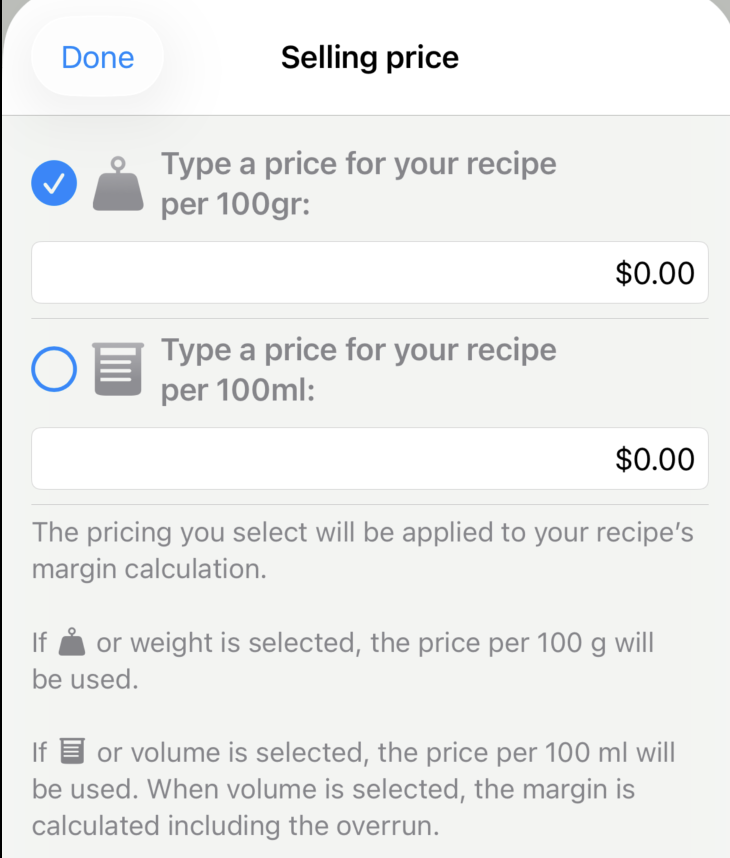
Selling price drives the recipe's Margin and the revenue numbers in Statistics. If you'd rather set one default for every recipe, use Settings › Global Price.
| Action | What it does |
|---|---|
| Edit Ingredients | Add or remove ingredients from the recipe. |
| Auto-balance | Optimize the ingredient loads to land every KPI inside its range. See Balancing a Recipe. |
| Rescale | Multiply every load by a constant. Useful for normalizing a recipe to 1000 g total. |
| Make Gelato | Scale to a target quantity, batch count or freezer profile and run a production. See Make Gelato. |
| Production History | Open the list of past batches for this recipe. See Production History. |
| Generate a nutritional label or production sheet. See Printing & Labels. | |
| Duplicate | Clone the recipe (mandatory for default/locked recipes). |
| Save as ingredient | Convert the current recipe into a single ingredient — useful for bases (white base, fruit prep) you reuse across recipes. |
| Share | Export as a .gmaestro file. See Backup & Sharing. |
Expand the Notes section under the header to capture process notes, alternates, results from a tasting panel, customer feedback — anything you want kept with the recipe. Notes are also included on the printed Note Sheet and travel with the recipe when exported.
If a slider drag or auto-balance produces something you didn't want, just undo: ⌘Z on macOS, or use the on-screen Undo control on iPad / iPhone.
