Turn a balanced recipe into a real batch.
Make Gelato scales your recipe to the quantity you actually need and gives you an interactive worksheet for the production itself: a tickable ingredient list, live cost & margin, and a final Mark as Produced action that writes the run to history.
Open it from: Recipe Details › Make Gelato.
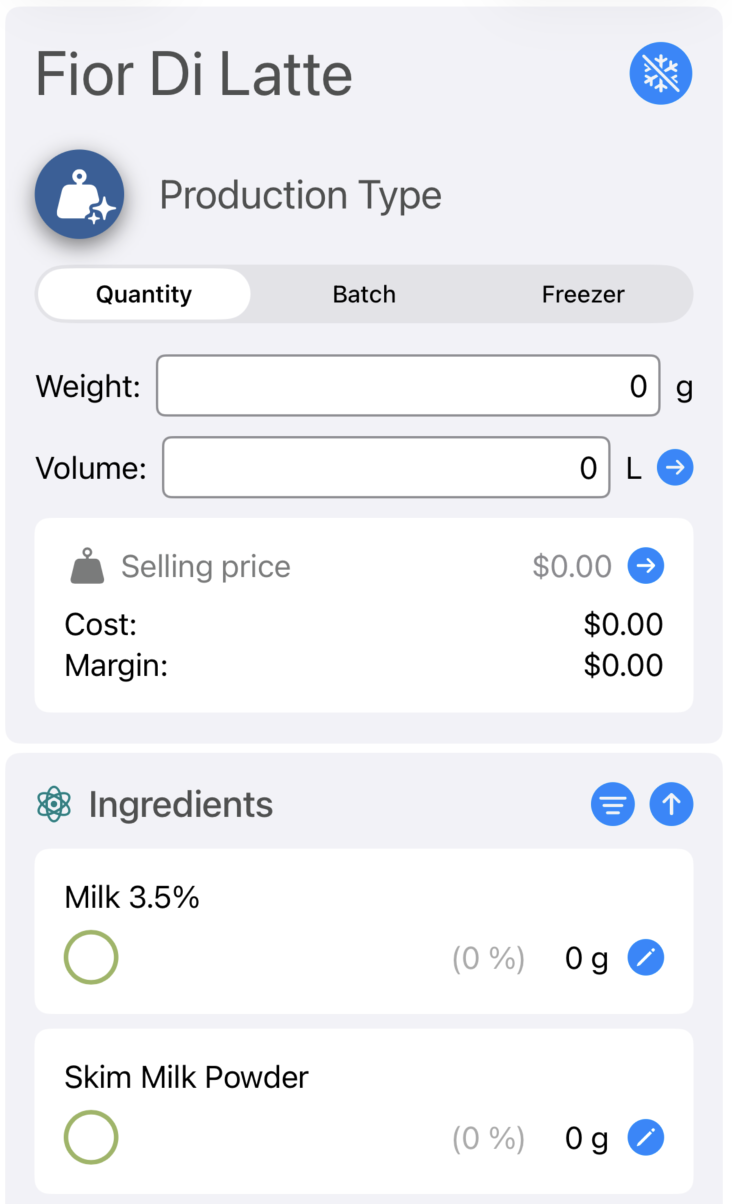
At the top of the screen pick how you want to express the batch size:
Enter the total weight (g or kg) or the total volume (litres) you want to produce. The volume calculation uses the recipe's overrun (the air whipped in during freezing). Click the arrow next to Volume to set overrun directly for this batch, or change the global default in Settings › Overrun.
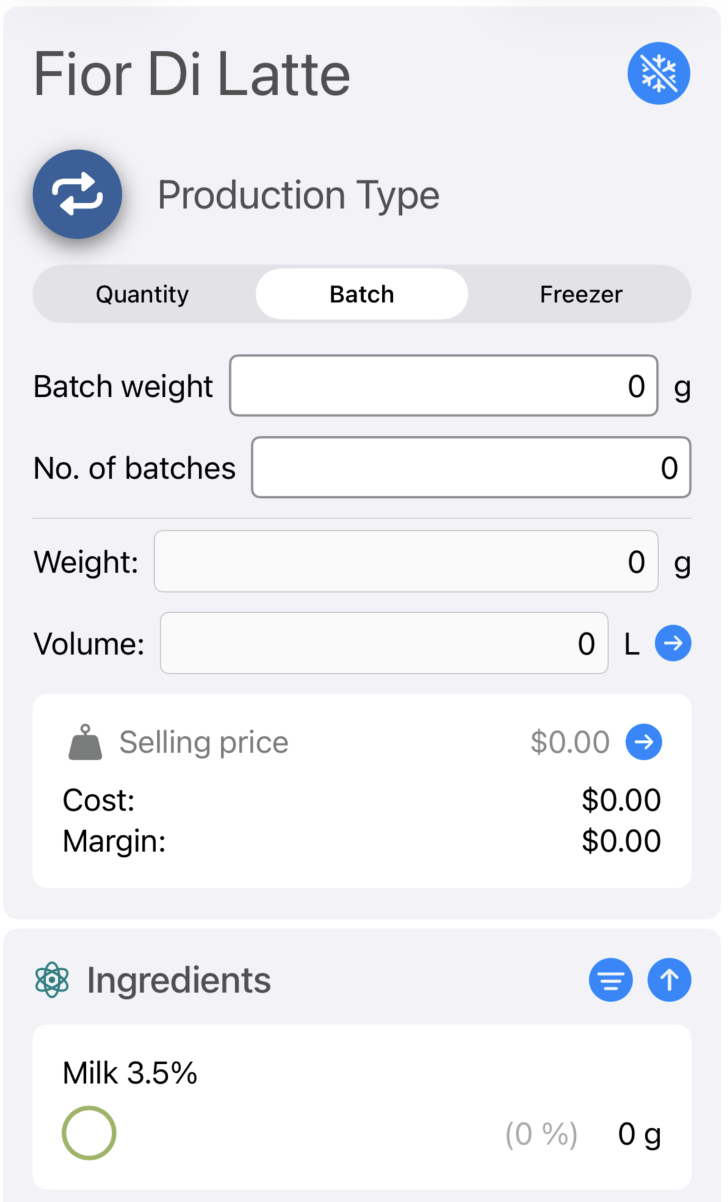
Enter the size of one batch (typically your batch freezer's nominal capacity) and the number of batches to run. Total weight and volume are derived and shown read-only. Perfect for service-day prep where you know you need six tubs of stracciatella.
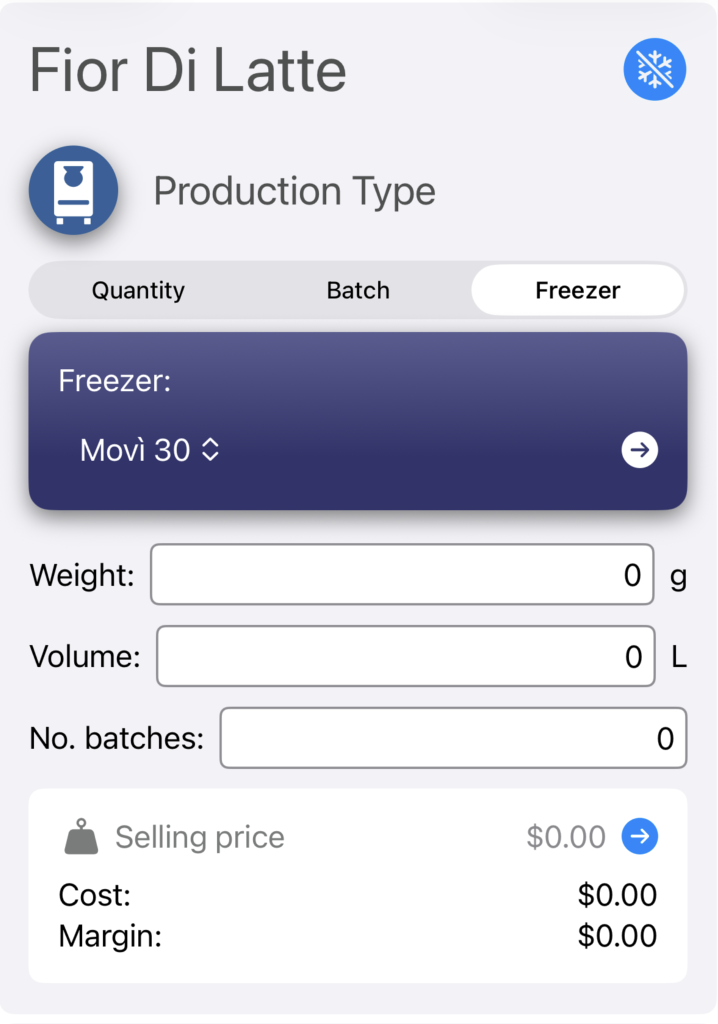
Pick one of the Batch Freezer profiles you configured in Settings. The recipe scales to that freezer's capacity and uses its own overrun. Tap the arrow next to the picker to jump to the Batch Freezer settings if you need to add or edit a profile.
Once the recipe is scaled, every ingredient appears as a row showing the exact weight to add. Tick each one as you weigh it on the bench so you don't lose your place — the Mark all as added button appears at the bottom when the run is fully assembled.
The Make Gelato screen includes a one-tap pasteurization reference for hot-process recipes:
Total cost and total revenue (selling price × scaled quantity) appear at the bottom of the screen, with the resulting margin. Tap the price to edit it for this batch only, or change the default on the recipe itself in Recipe Details.

When the batch is in the freezer, tap Unproduced (it becomes Produced after confirmation). This writes a Production Batch to history with:
See Production History for what to do with it next.
| Action | What it does |
|---|---|
| Print nutritional label | Open the print sheet (nutrition label / production sheet) sized to this run. |
| Edit selling price | Set price per scoop, per weight or per unit for this batch. Hidden in Enthusiast mode. |
| Produce recipe | Same as Mark as Produced — alternative entry on macOS. |