
App-wide defaults and behavior.
Open it from: Sidebar toolbar › Settings (gear), or ⌘, on macOS.
Choose how Gelato Maestro displays temperature (°C / °F). This affects the serving-temperature controls and every thermal value across the app, including the freezing curve and scoopability gauge.
Pick between Professional and Enthusiast:
Switching modes is non-destructive — your recipes, ingredients, batches and prices are preserved across modes.
Toggle iCloud Sync to mirror your recipes, custom ingredients, batch freezers and production history across every Mac, iPad and iPhone signed into the same Apple Account.
Configure as many batch freezer profiles as you own. Each profile stores:
Profiles feed the Freezer mode on Make Gelato. In Enthusiast mode you get a single Ice Cream Maker entry instead.
Define min/max ranges and ideal targets for each KPI gauge by gelato kind (Cream / Sorbet). The values you set here are what color the bars red/yellow/green in Recipe Details and what Auto-balance tries to satisfy.
Each gauge has a sensitivity setting (Coarse / Medium / Fine) that controls how aggressively the needle reacts to small changes.
Scoopability has its own setup page because it depends on the serving temperature. Set your case's typical serving temperature (e.g. −12 °C for a Italian-style display case, −15 °C for a colder export-style case) and Gelato Maestro evaluates scoopability at that temperature for every recipe.
Set a default selling price that new recipes inherit. You can still override the price per recipe in Recipe Details. Currency comes from your macOS / iOS region.
Set the global default overrun (air incorporation, %). Used by Make Gelato when scaling by volume and when computing the freezing curve. Individual batch freezer profiles can override this with their own overrun.
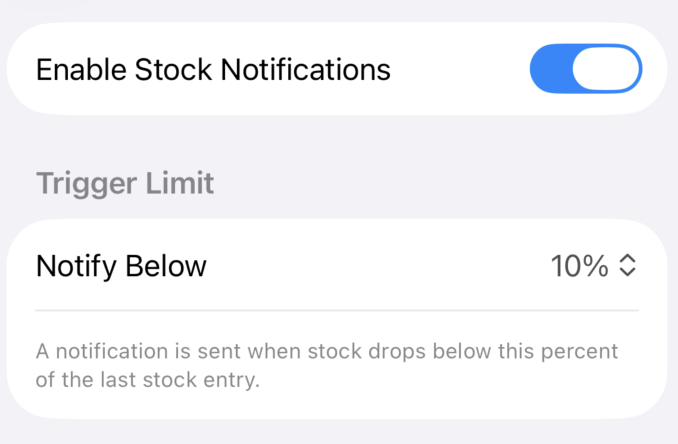
Gelato Maestro can notify you when an ingredient is running low so you can reorder before the next service. Open Settings › Notifications › Stock to configure it.
The "last stock entry" is the baseline. Every time you enter or update an ingredient's stock value (typically after a delivery), Gelato Maestro records it as the new baseline. After that, every time you mark a batch as Produced the stock decrements; when it crosses your threshold, the notification fires.
Toggle inline ? buttons throughout the app's forms (ingredient editor, gauge settings, etc.). They expand to short explanations of the surrounding fields. Useful while you're learning Gelato Maestro; turn off once you no longer need the reminders.
Tap Verify to run a verification pass over your ingredient database. The check reports anomalies and can repair most of them automatically. Use it after:
The check reports anomalies (and can fix some of them automatically) without modifying your recipes' captured composition history.
The lower section of Settings hosts: