Composition, cost, allergens, stock — everything Gelato Maestro knows about an ingredient.
Click an ingredient in the sidebar to open its detail view. Use this view to inspect what's in the ingredient, what it costs, how much you have in stock, and what notes you've kept about its supplier or behavior.
The first section is a per-100 g breakdown of the ingredient. It lists only the elements whose value matters (above ~1%) so a cream's view stays short and readable. The pencil button opens the composition editor; the eye button switches to read-only.
For default ingredients, the editor opens in read-only mode — they're locked to keep the curated library stable. Duplicate them to make an editable copy.
Side-by-side (or stacked on iPhone) you'll see two visual breakdowns of the composition:
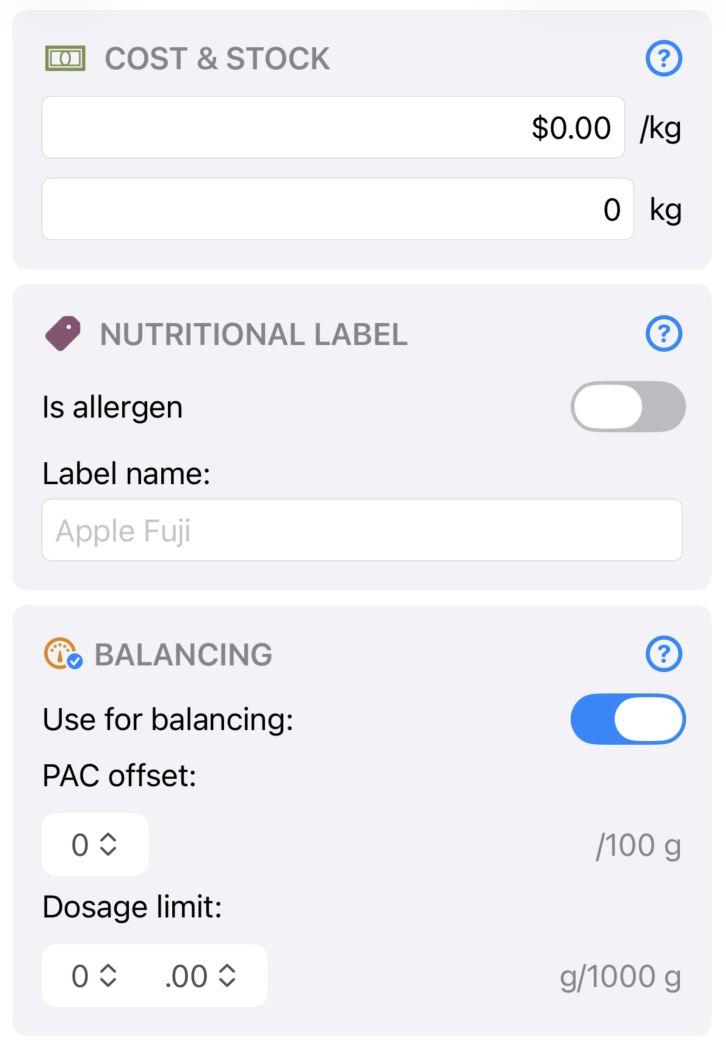
Set the price per 100 g and the amount you have on hand. Cost flows directly into recipe Cost, Margin, and the financial side of Statistics. Cost is hidden when the app is set to Enthusiast mode; stock is always visible.
Stock decrements automatically every time you mark a production batch as Produced — Gelato Maestro subtracts the quantities used in the batch from each ingredient's stock.
When you enter or update a stock value, that value becomes the baseline for that ingredient. Turn on Stock Notifications in Settings › Notifications and pick a Notify Below percentage (5%–100%, default 10%). Once an ingredient's remaining stock drops below that percent of its baseline, Gelato Maestro sends you a notification so you can reorder before you run out mid-service.
Nutritional fields (energy, total fat, carbohydrates, protein, sodium, fiber) are used for the printed Nutritional Label and do not feed into balancing. Default ingredients ship with their public nutrition data; for ingredients you create, enter whatever you'd like to print on a label.
In the Nutritional Label section of the ingredient editor you can mark an ingredient as an allergen (causing it to print in bold on the label, per EU/US regulation) and give it an alternative name for the label — e.g. an ingredient internally called SMP can be labelled as Skimmed Milk Powder for consumers.
Expand the Notes section to keep:
| Action | What it does |
|---|---|
| Edit (pencil) | Opens the composition editor — see Editing an Ingredient. |
| Duplicate | Creates an editable copy (the only way to modify a locked default ingredient). |
| Share | Exports the ingredient as a .gmaestro file you can send to a colleague. |
| Delete | Only available on user-created ingredients. Does not affect recipes that already use it — the captured composition stays inside those recipes. |
When you create a new ingredient, you can scan a packaged product's barcode (camera or photo). Gelato Maestro queries Open Food Facts and pre-fills nutrition fields where possible. You still need to validate the composition fields manually — Open Food Facts data is community-maintained and won't be complete for every product.
